
Showing posts with label Windows. Show all posts
Monday, 21 September 2015
How To Stop/Disable Windows Updates In Windows 10 2015 new post solution
Method 1st :- Stop Windows 10 Updates From Services.
Step 2. In the control panel go to Administrative tools.
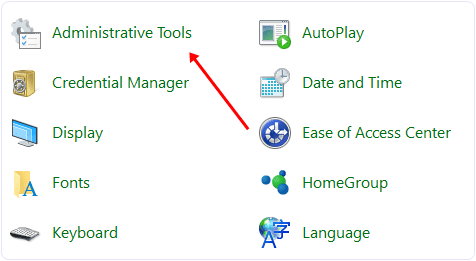
Step 3. Then look for services option.

Step 3. Then look for services option.
Step 4. In the services window you will see many types of windows services running.
Step 5. In this window scroll down and to find windows update service and turn off it.

Step 6. To turn of this service you have to right click on the service and click on the properties option.
Step 7. In the properties options select general setting.
Step 8. In the general setting look for start up type option and select disable option.
Step 9. After that look for service running status and click stop button.
Step 10. Click on OK and your automatic updates will stop after that.

If you have limited internet connection and you want to stop automatic updates of Windows 10 and other Application then you can take advantages of Windows 10 Amazing feature called metered internet connection. By using this feature you can stop Applications and Windows from updates. To set your internet connection as metered you have to follow the below steps.
Step 1. Open the settings Apps in Windows 10.
Step 2. After that select Network & Internet.

Step 5. Now this option will be set for all WiFi Network.
So these are some best possible ways to turn of windows 10 updates. In case you have any problem or you know any other best method let us know.
Method 2nd:- Disable Windows 10 From Network Settings
If you have limited internet connection and you want to stop automatic updates of Windows 10 and other Application then you can take advantages of Windows 10 Amazing feature called metered internet connection. By using this feature you can stop Applications and Windows from updates. To set your internet connection as metered you have to follow the below steps.
Step 1. Open the settings Apps in Windows 10.
Step 2. After that select Network & Internet.

Step 4. Then select the Set as metered connection option.

Step 5. Now this option will be set for all WiFi Network.
So these are some best possible ways to turn of windows 10 updates. In case you have any problem or you know any other best method let us know.
Top Post 10+ Best CMD Hacks For Windows - 2015
1. Creating Con Or Non Deletable Folder With CMD
In Windows you can not create a folder with name con or can not rename a folder to con. This is because it is a variable name used by Windows programming. Other variable name includes lp1, lpt2, lpt3 up to lpt9, aux. So Windows can not allow you to make a folder with this name. But with the help of dos command we can create a folder with such name.
1. Press Windows button and run CMD as administrator.
2. Type the command with this syntax "drive name: ". This command allow you to enter in the drive in which you want to create a folder. For example d: and press enter.
3. Now enter the following command
md con\ and press enter.
4. After that your folder is created in specified drive.


Deleting con Folder
You can not delete such folder manually by using Windows. To delete this folder type the following command in the command prompt.
rd con\
2. Shut Down Computer With Commands
You can also shut down your computer by using command prompt. Type the following command in command prompt.
For Shut Down
shutdown -s
For Restarting
shutdown -r
For Logoff
shutdown -l
-s -r -l parameter tells the computer to shut down, restart, log off
3. Shutdown Computer In specified Time With CMD
You can also shut down your computer in specified time using command prompt. If you want to shut down your computer after two minutes type the following command.
shutdown -s -t 120


4. Print Message Before Shut Down
We can also print some message before shut down a computer. We can use it as a reminder which remind you a task at the time of shut down. We can do this by using the following command.
shutdown -s -t 500 -c "My message."
We can replace my message with our message we want to display.

5. Assoc CMD Command
There are many programs installed in our computer. Each program have its own file extension. It is difficult to remember each file extension. If you want to know which file is associated with which program then we can do this by typing the following command
Assoc
This command provide you a list of programs and their associated files.

6. Hide A Folder With CMD Command
We can play some interesting tricks with command prompt. Hiding a folder is one of them. By hiding a folder you can also save your data from other users. You can do this by typing the following command.
attrib +s +h D:\ABC
Where ABC is the name of directory we want to hide.


Unhide The Folder
If we can also unhide the hidden folder using command prompt. To unhide the folder type the following command.
attrib -s -h D:\ABC
7. IP Related CMD Command
ipconfig is of the most useful command to see the IP address, Defult gateway and subnet mask. This command is related to networking and is most important for troubleshooting the problems related to TCP/IP.
To view Subnet Mask and IP Address use
ipconfig
To view TCP/IP related Information use
ipconfig/all
To view DNS cache use
ipconfig/displaydns
To delete the local cache of DNS use
ipconfig/flushdns

8. Net Related Commands
Net is a powerful cmd tool which is used to see the stat of network. This command provide information about active connection. This command is used to view or update network settings.
It is used to view only the services that are started using the following versions of this command
1. net stop server ( when the server is currently not running any service.)
2. net start server (when the server is being starting a service.)
3. net start (This command is used to check the services that are currently running.)
4. For connecting to shared network devices use the following command.
net use m:\sharedservername (for connecting to share network drives)
net use m:\sharedservername/delete (for disconnecting to share network drives)

9. Netstat CMD Command
Netstat command is an important tool when you want to know about who is establishing a connection with your computer. The out of this command provide you the information about all active connection and listening ports. we can view Ethernet statics and resolve connecting host IP address to a fully qualified domain name. You can use the Netstat command with following attributes
1. -a (display all connection)
2. -n (sorts connection in numerical order)
3. -b (display executable name. that is browser name)

10. Nslookup CMD Command
When we use internet , Domain name server resolve the Domain names to IP addresses so we do not need to remember the IP addresses. But in case of troubleshooting we can get the IP address of particular website using this command.
syntax is nslookup google.com

So these are some best cmd tips and tricks. I hope you like them all and find them working. In case you face any problem or you know trick related to cmd must let us know we will update it.
Subscribe to:
Posts
(
Atom
)